Your Guide to 3D Printing File Formats: STL, STEP, OBJ, and More

Ever feel overwhelmed by all the different 3D printing file formats? You’re not alone. Choosing the right file type is the first—and one of the most important—steps to getting a high-quality 3D print. In this updated guide, you’ll learn the differences between the most common formats—STL, STEP, and OBJ—plus how zone3Dplus supports them in your workflow. By the end, you’ll know exactly which one fits your project and how to optimize it for the best results.

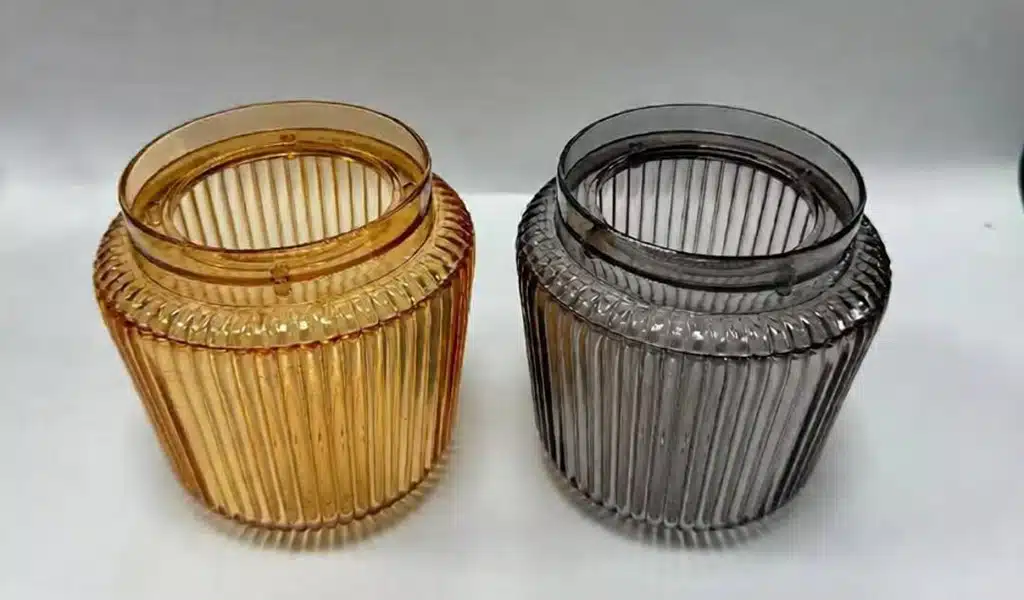
zone3Dplus Transparent Parts

Why Your 3D File Format Matters

A 3D file isn’t just a model—it’s a set of instructions telling your printer exactly what to build. But not all instructions are equal. Some formats contain only the external shape, while others include editable features, color, texture, or manufacturing details.

Choosing the wrong format leads to:

  • Uneditable files
  • Failed or low-quality prints
  • Extra cleanup work
  • Inconsistent compatibility between software

zone3Dplus helps reduce these issues by supporting a wide range of formats and automatically optimizing your files for printing, texturing, simulation, or collaboration.

Breaking Down the Most Common 3D File Formats

1.STL — The 3D Printing Standard

STL is the most widely used format in 3D printing. In fact, it’s been the go-to choice for decades.

  • What it is: An STL file translates your 3D model into a mesh of tiny triangles. This “mesh” creates the surface shape of your object.
  • Best for: Sending a ready-to-print model directly to your slicer software (like Cura or PrusaSlicer). It’s perfect for simple, functional prototypes and most hobbyist prints.
  • Watch out: Since it only contains surface mesh data, an STL file cannot hold color, texture, or original design history. This means you usually can’t easily edit its basic dimensions after it’s saved.

2.STEP (STP) — The Engineer’s Choice

Next up is STEP, also called STP. This format is a powerhouse for engineers and product designers.

  • What it is: Unlike STL, a STEP file saves your model as a precise “solid body.” It uses math to describe the exact geometry and features of the design.
  • Best for: Professional work, manufacturing, and any project where you need to make future changes. You can edit features like hole sizes or wall thickness easily. It’s also perfect for sharing designs between different CAD software programs.
  • Watch out: Most 3D printers cannot use a STEP file directly. You will almost always need to convert it to an STL first using your CAD or slicer software.

3.OBJ — The Artist’s Canvas

Meanwhile, OBJ files are a favorite for artists, game designers, and full-color 3D printing.

  • What it is: An OBJ file can store not only the 3D shape but also color information, texture maps, and even multiple objects in one file.
  • Best for: Complex, artistic models, figurines, and when using full-color printers. It’s very common in animation and visual effects.
  • Watch out: OBJ files can be large and complex. For simple, single-material prints, STL is often a faster and easier choice.

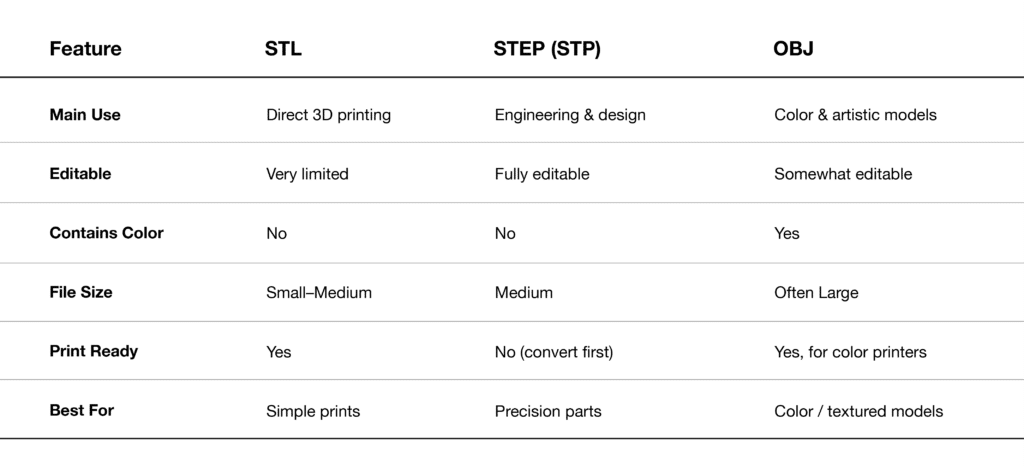
Quick Comparison Table

zone3Dplus

How zone3Dplus Fits Into Your File Workflow

zone3Dplus enhances your 3D file handling by offering:

1.Multi-format compatibility
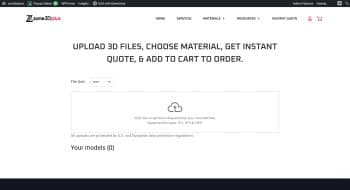
Upload more than just STL, STEP, and OBJ—Zone3DPlus supports a wide set of CAD and mesh formats, making it easier to merge, convert, or repair files in one place.

2.Automated mesh repair
Fix holes, flipped normals, self-intersections, and thin walls instantly.

3.Format conversion tools
Easily convert between:

  • STEP → STL
  • OBJ → STL
  • STL → OBJ
  • and more

All optimized for printing precision.

4.Smart previews
See textures, colors, assemblies, and geometry details before sending to print.

5.Team-friendly collaboration
Share files, leave comments, and manage versions without losing design quality—especially useful for STEP-based workflows.

How to Choose the Right Format

Choose STL if…

  • Your model is ready to print
  • You don’t need to change the geometry
  • You want fast slicing and small file sizes

Choose STEP if…

  • You’re designing precise, functional components
  • You plan to edit dimensions later
  • You want to collaborate with engineers or manufacturers
  • You need clean, true solids

Choose OBJ if…

  • Your model includes color or texture
  • You’re working on characters, art, or visual effects
  • You’re preparing for full-color printing

Final Thoughts

Understanding the differences between STL, STEP, and OBJ will dramatically improve your 3D printing results. Whether you’re making engineering parts, artistic pieces, or everyday prototypes, choosing the right format sets you up for success.

And with zone3Dplus, managing, converting, repairing, and preparing those files becomes easier than ever. Keep your editable version as a STEP file, export to STL or OBJ when printing, and let zone3Dplus optimize the rest.

Scroll to Top